IPTV Apps Tutorial
How to Install and Configure IPTV on TiviMate IPTV Player Complete Setup Guide
Prepare your Firestick or Android TV, sideload TiviMate, add your IPTV provider via M3U or Xtream Codes, and unlock premium features like recording and multi-view for a flawless IPTV experience.
TiviMate IPTV Player dominates Android-based streaming thanks to its intuitive interface, EPG grid, multi-screen playback, and rapid channel list navigation. While the base app is free, the optional premium plan unlocks DVR recording, data backups, and multi-view layouts, making it a powerhouse companion for IPTV Prime and other licensed providers.
Follow this comprehensive walkthrough to prep your hardware, install TiviMate safely, add IPTV credentials, and customize every setting for smooth, high-definition streaming.
Why Choose TiviMate IPTV Player?
- •Supports M3U playlists, Xtream Codes, and Stalker portals for maximum IPTV compatibility.
- •Modern, remote-friendly UI built for Android TV, Firestick, and Google TV layouts.
- •Premium add-ons like multi-screen viewing, DVR-style recording, and multi-view panes.
- •Powerful customization: channel groups, favorites, parental controls, and theme tweaks.
- •Syncs smoothly with reputable providers such as IPTV Prime or IPTV USA.
Step 1
Prepare Your Firestick or Android TV
Enable Developer Options & Unknown Sources
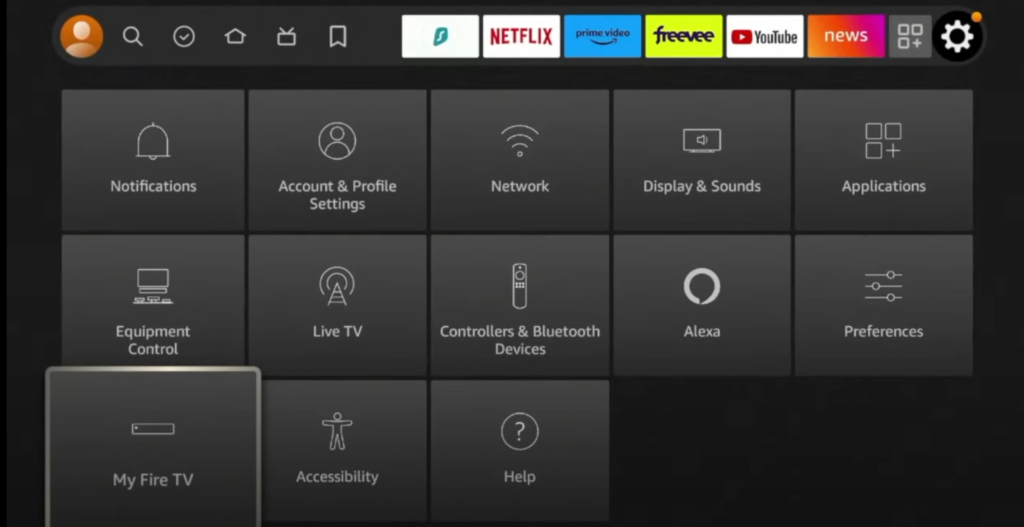
- From the Firestick/Android TV home screen, open Settings.
- Choose My Fire TV (Firestick) or System > About (Android TV) and tap the Build number 7 times to unlock Developer Options.
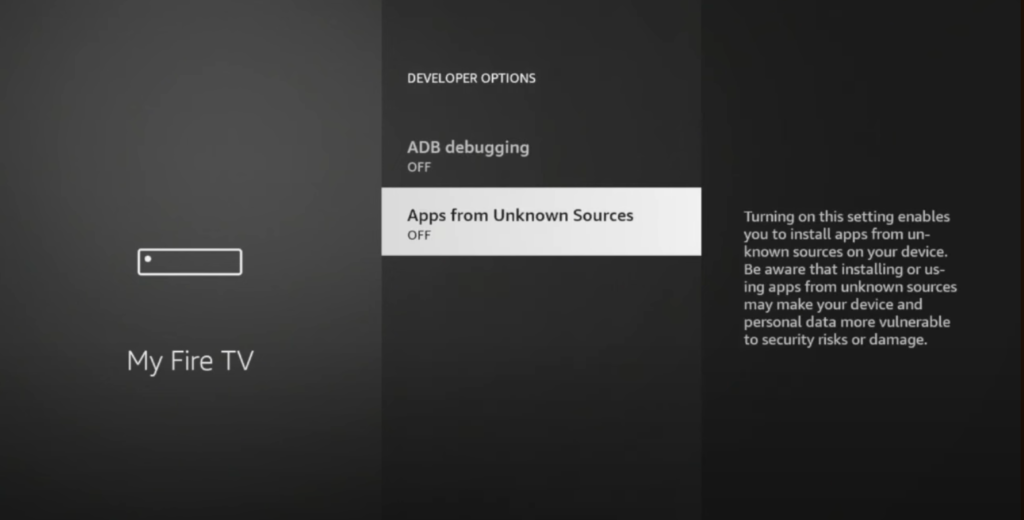
- Enter Developer Options and toggle ADB Debugging ON.
- Enable Apps from Unknown Sources so you can sideload TiviMate from Downloader.
Step 2
Install the Downloader App
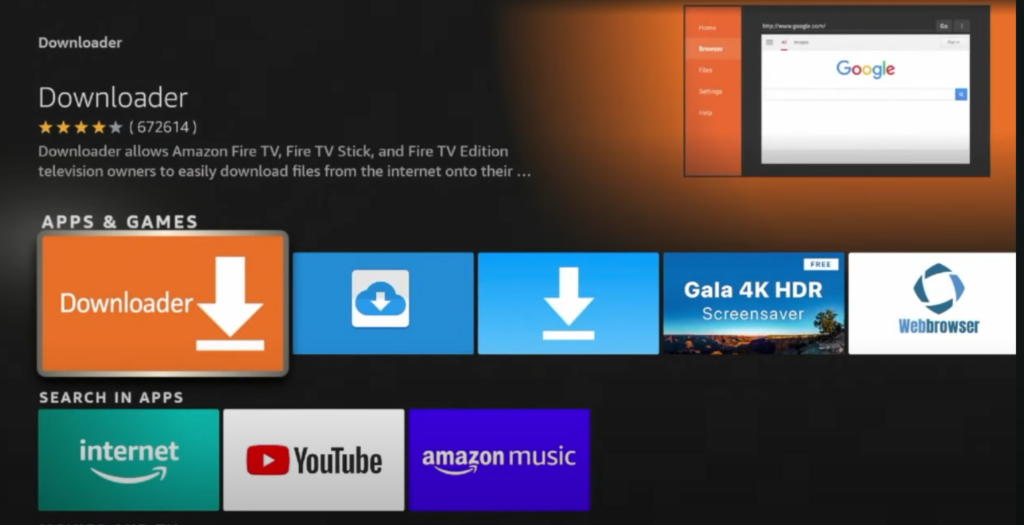
- Use the Search icon on your Firestick/Android TV and type “Downloader”.
- Select the Downloader app published by AFTVnews.com and install it.
- Launch Downloader, accept storage permissions, and dismiss onboarding prompts.
Step 3
Download & Install TiviMate IPTV Player
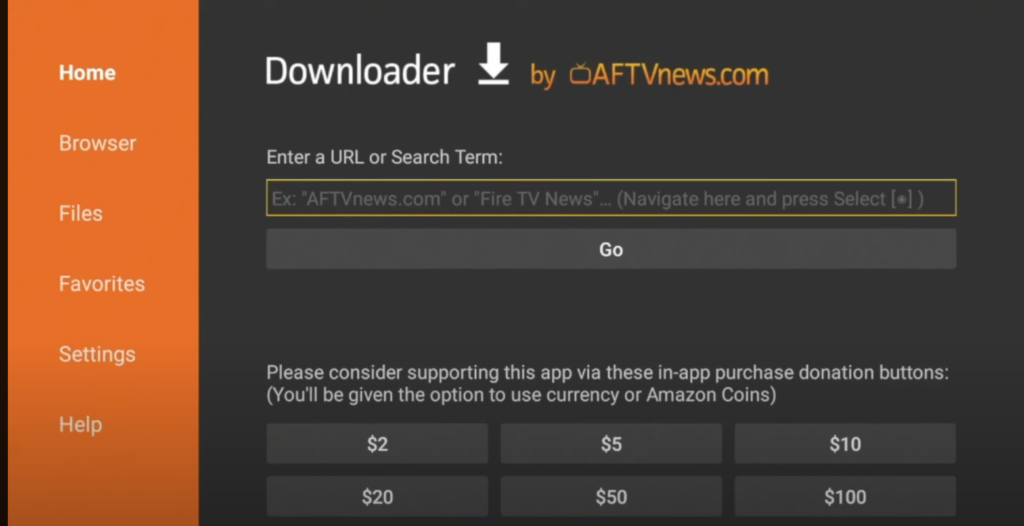
- Open Downloader and highlight the URL field.
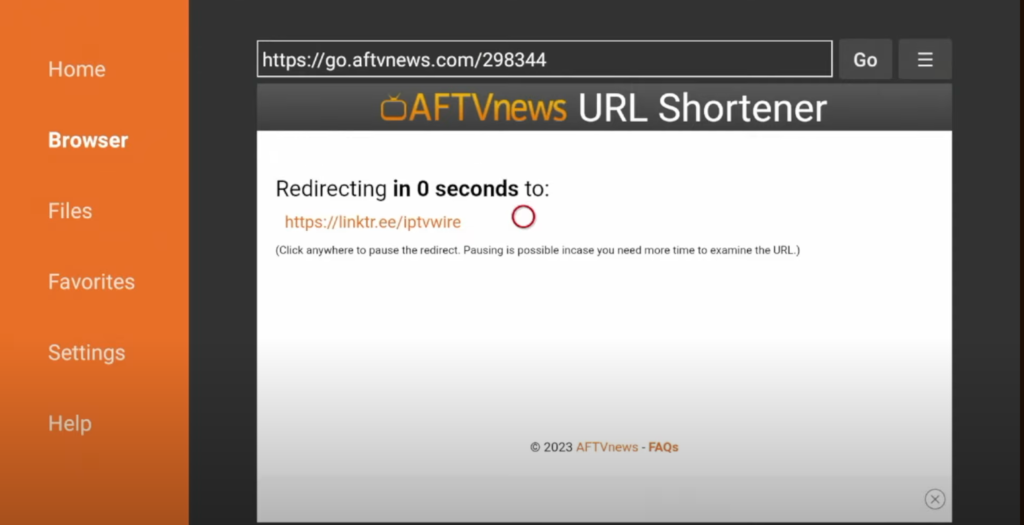
- Option A: enter the quick code 272483 to jump straight to the latest TiviMate build.
- Option B: type https://tivimate.com/ to fetch the APK directly from the official website.
- Press Go and wait for the APK file to download (usually under two minutes).
- Click Install when prompted, approve security prompts, and press Open when the success screen appears.
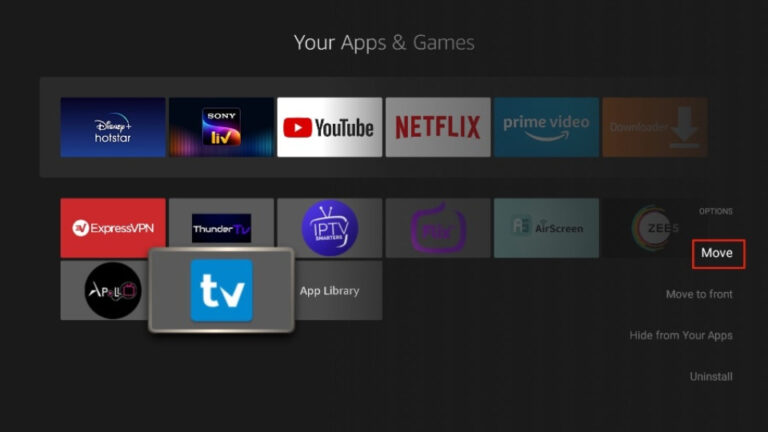
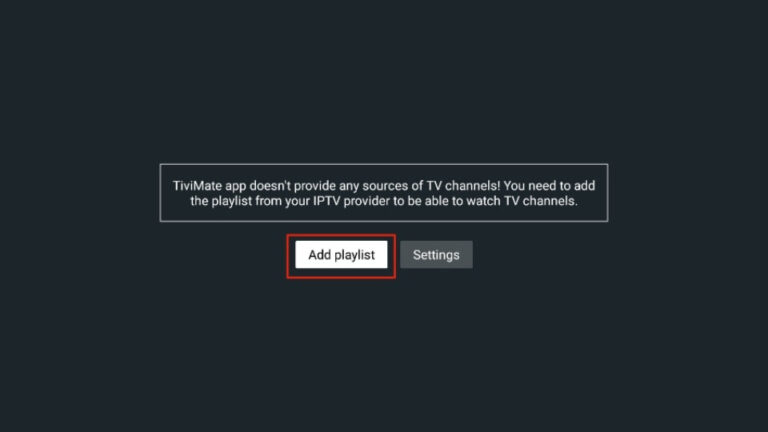
Reminder: TiviMate is only a player. Pair it with a licensed IPTV provider like IPTV Prime to unlock content.
Step 4
Add Your IPTV Subscription
Launch TiviMate, open Settings, then select Add Playlist.
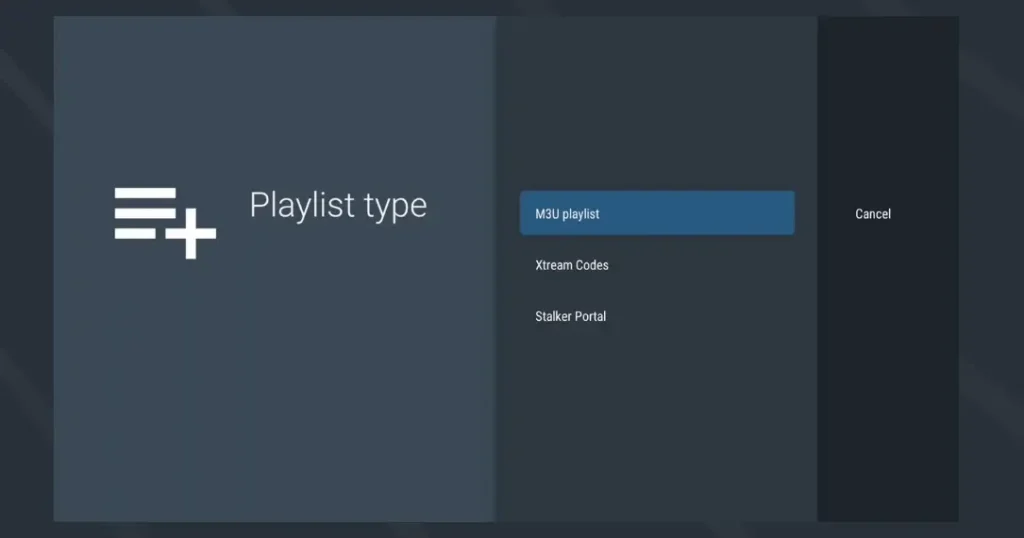
M3U Playlist URL
- ▹Choose Add Playlist > Enter URL.
- ▹Paste the full M3U link provided by your IPTV provider.
- ▹Name the playlist for easy reference (e.g., IPTV Prime).
Xtream Codes Login
- ▹Select Xtream Codes or Portal login.
- ▹Type the Server/Portal URL, Username, and Password exactly as provided.
- ▹Optional: enable auto EPG pull if your provider bundles the program guide.
Portal URL (Stalker)
- ▹Pick Portal URL mode.
- ▹Input the portal address, then authenticate using your device ID/password combo if required.
- ▹Great for legacy IPTV services that rely on Stalker middleware.
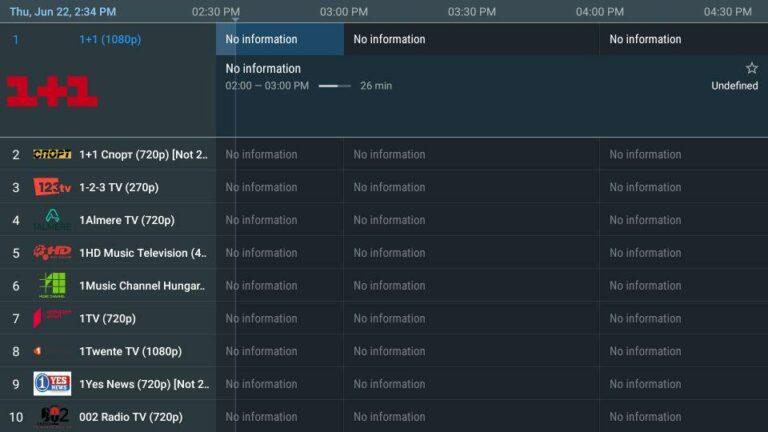
After saving, TiviMate syncs your channel list and pulls in the EPG if provided.
Step 5
Start Streaming & Customize
- ▹Browse live channels by category, launch VOD libraries, and mark favorites.
- ▹Use the EPG grid to view schedules, set reminders, or start recordings (premium).
- ▹Adjust picture quality (SD/HD/4K), audio tracks, and subtitle languages inside Settings.
Advanced TiviMate Features
Multi-Screen & Multi-View
- ▹Premium subscribers can pin multiple live channels side-by-side.
- ▹Ideal for sports days or split monitoring news feeds.
- ▹Adjust audio focus and layout per tile for flexible viewing.
Recording Live TV
- ▹Schedule recordings directly from the EPG grid.
- ▹Store captures locally or on attached USB drives (depending on device).
- ▹Manage saved shows inside Library > Recordings.
Parental Controls
- ▹Set a master PIN to protect adult categories.
- ▹Hide or lock specific channels and folders.
- ▹Combine with time restrictions for stricter household policies.
Channel Management
- ▹Create custom groups (Sports, Kids, Movies, etc.).
- ▹Reorder or hide unused channels to streamline browsing.
- ▹Sync favorites across devices using backup/export options.
Optimize Your IPTV Experience
Internet & Network
- ▹Aim for 10+ Mbps per HD stream; 25+ Mbps for 4K multi-view.
- ▹Use Ethernet or a Wi-Fi 6 router positioned close to the streaming device.
- ▹Restart the modem/router weekly to clear congestion.
Device Performance
- ▹Clear TiviMate cache via Settings > Apps when storage gets low.
- ▹Reboot Firestick/Android TV if you notice sluggish menus.
- ▹Install OS and app updates promptly for stability patches.
Security & Privacy
- ▹Use strong IPTV account passwords and change them periodically.
- ▹Consider a reputable VPN if you need geo-shifted access or extra privacy.
- ▹Stick with licensed IPTV providers (IPTV Prime, IPTV USA, etc.) to stay compliant.
Troubleshooting Common Issues
Channels Won't Load
- ▹Double-check playlist credentials for typos or expired passwords.
- ▹Confirm your IPTV subscription is active with the provider.
- ▹Refresh the playlist inside TiviMate or delete/re-add it from scratch.
- ▹Power-cycle your streaming device and router.
Buffering / Playback Issues
- ▹Run a speed test; downgrade quality if bandwidth is limited.
- ▹Pause background downloads or gaming sessions on your network.
- ▹Switch to Ethernet or reposition the Wi-Fi router for a stronger signal.
- ▹Try a different channel to rule out provider-side congestion.
EPG Not Loading
- ▹Verify the EPG URL is correct and matches your playlist.
- ▹Tap Refresh EPG within settings and allow it to rebuild.
- ▹Check with your IPTV provider to ensure EPG data is currently published.
- ▹Clear TiviMate data (backup playlists first) if the guide remains empty.
Frequently Asked Questions
Can I use TiviMate on multiple devices?
Yes. Install the app on each Firestick, Android TV box, or tablet you own, then sign in with the same IPTV subscription. Just confirm how many simultaneous streams your provider allows to avoid disconnects.
Is my IPTV service legal with TiviMate?
TiviMate is just a player. Legality depends on your provider. Stick to licensed services that advertise proper broadcast rights, transparent pricing, and real customer support.
Does TiviMate include parental controls?
Absolutely. Enable Parental Controls in Settings to lock down channels, apply age filters, and require a PIN before viewing restricted categories.
Free vs Premium TiviMate—what changes?
Free covers single-screen live TV, EPG, and favorites. Premium adds multi-view, DVR recording, advanced backups, and ad-free polish. Most power users upgrade for recording alone.
Can I install TiviMate without Downloader?
Yes. You can sideload via USB, ADB, or other sideloaders, but Downloader remains the fastest, most user-friendly option on Firestick/Android TV.
Conclusion
With Developer Options enabled, Downloader installed, and TiviMate configured with your IPTV credentials, you can enjoy thousands of live channels, movies, and sports replays on any Android TV or Firestick device. Maintain a stable internet connection, keep TiviMate updated, and rely on trusted providers like IPTV Prime to ensure your IPTV experience stays crisp, legal, and worry-free.