How to Use IPTV Smarters Pro on PC Complete BlueStacks Setup Guide
Install BlueStacks, download IPTV Smarters Pro from the Google Play Store, and log in with your IPTV credentials to transform any Windows or macOS machine into a powerful IPTV hub.
Running IPTV Smarters Pro through BlueStacks delivers a desktop-sized IPTV experience, complete with multitasking, mouse navigation, and the flexibility to use your subscription on another device while mobile hardware stays free.
Why use PC?
Bigger screen, better multitasking, keyboard shortcuts
What’s needed?
BlueStacks + Google sign-in + IPTV credentials
Install BlueStacks Android emulator
Minimum requirements
- Windows 7+ or macOS 10.12+ operating system
- At least 4 GB of RAM (8 GB recommended)
- 10 GB free disk space for BlueStacks and IPTV apps
- Dual-core processor or better
- Stable broadband internet connection
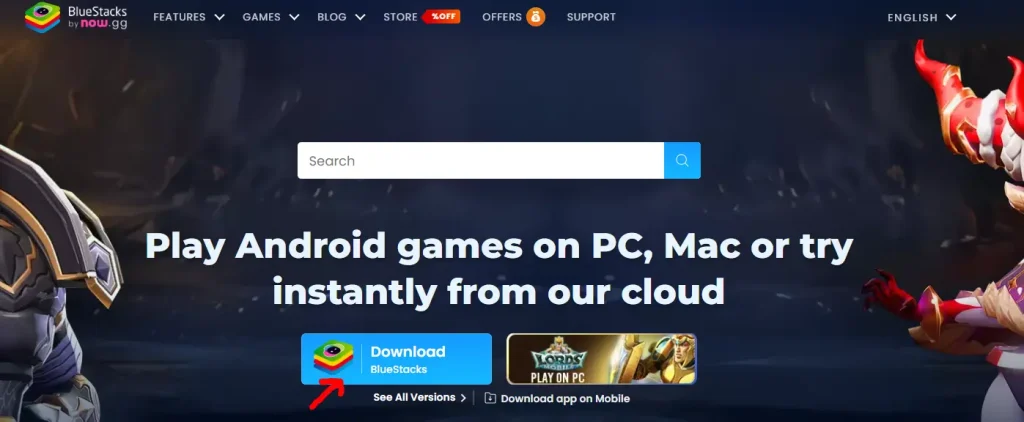
- Visit bluestacks.com and download the latest installer.
- Run the installer, accept the terms, and keep the default installation path unless you prefer a custom location.
- Wait for files to extract (a few minutes depending on your drive speed) and launch BlueStacks from the Start menu or Applications folder.
Complete Google sign-in
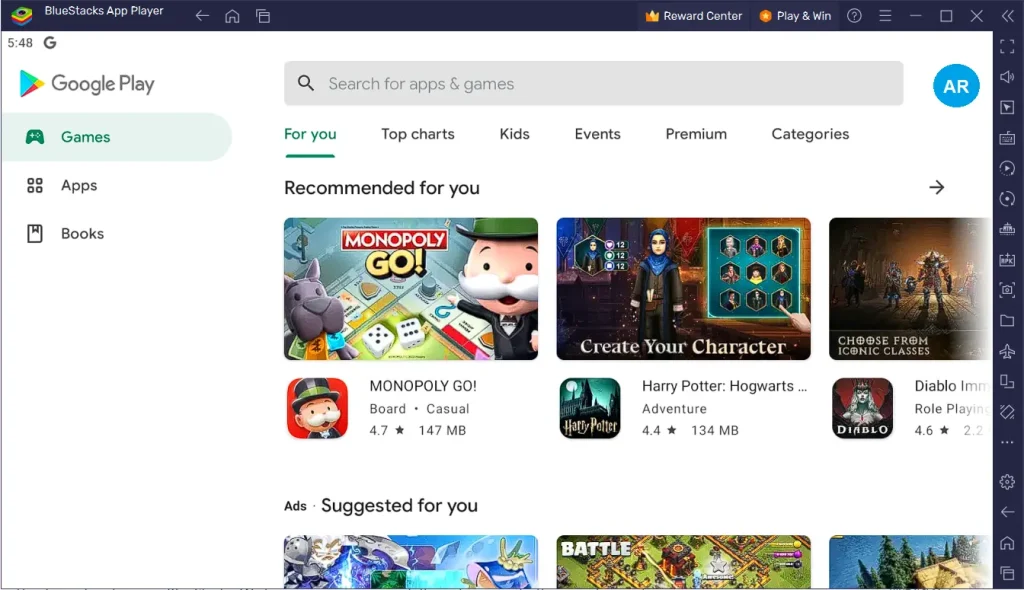
When BlueStacks launches, sign in with your Google account so the Play Store can sync apps and purchases. Approve two-factor prompts if needed and accept Google’s policies to continue.
Download IPTV Smarters Pro from the Play Store
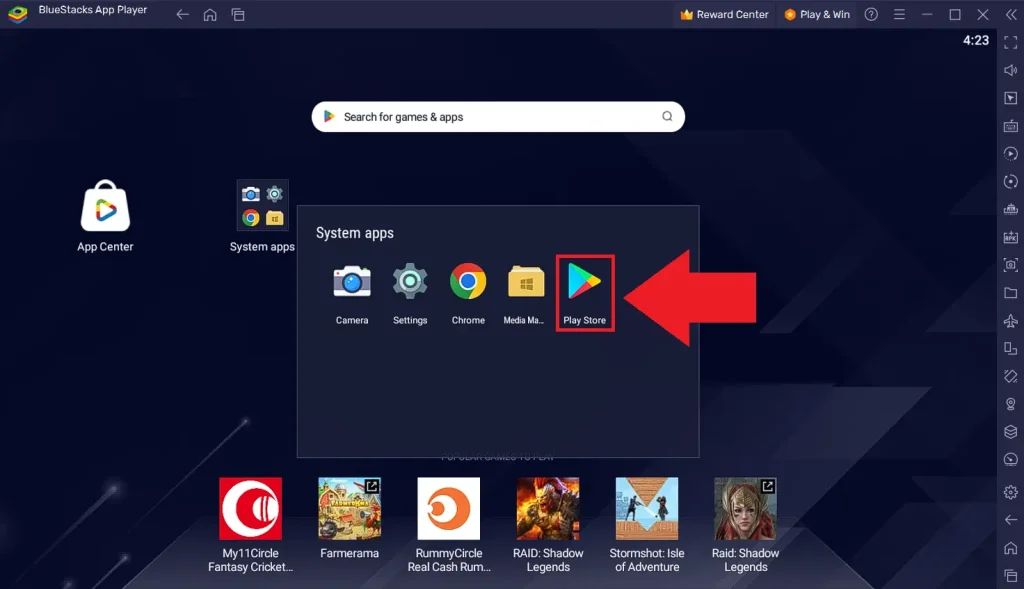
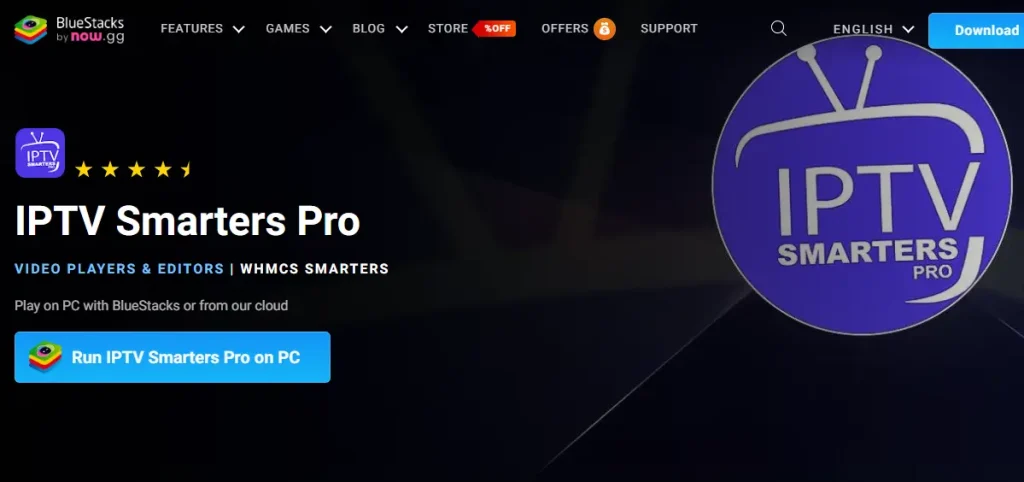
Use the Play Store inside BlueStacks to grab the official IPTV Smarters Pro app.
- Click the search bar at the top-right of BlueStacks and type "IPTV Smarters Pro".
- Select the verified listing from the results and open the Play Store page.
- Review the details, then hit Install and wait for the progress bar to finish.
- Select Open to launch immediately or locate the icon on the BlueStacks home screen later.
Configure IPTV Smarters Pro with your subscription
Launch the app within BlueStacks and pick the authentication method your IPTV provider supports.
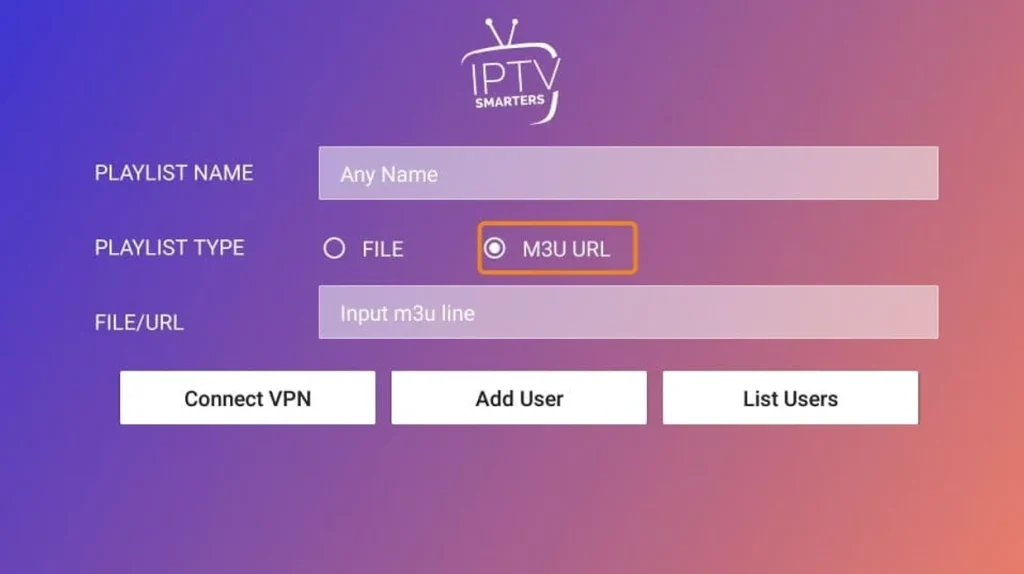
Option 1: M3U Playlist URL
- Select the M3U playlist login tile.
- Paste the M3U link supplied by your provider (copy/paste avoids typos).
- Press Add Playlist / Connect and let the app sync channels.
Option 2: Xtream Codes API
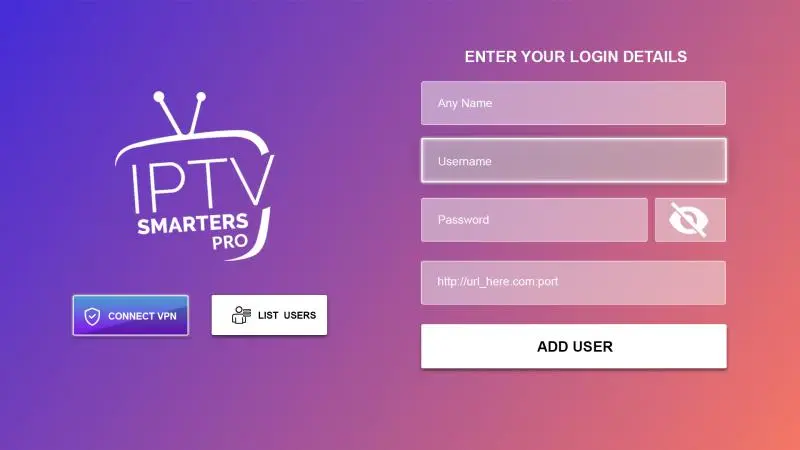
- Select Xtream Codes API and input the Server URL, Username, and Password from your IPTV provider.
- Double-check there are no extra spaces before pressing Login / Add User.
- IPTV Smarters Pro will authenticate and load your Live TV, Movies, and Series libraries.
Explore IPTV features and customize playback
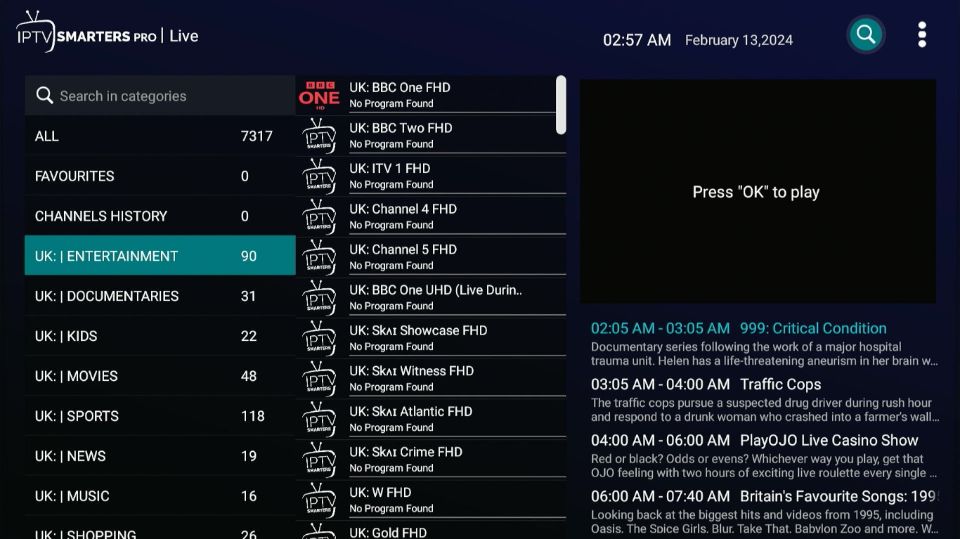
Navigate Live TV, VOD, Series, and category filters using your mouse and keyboard. IPTV Smarters Pro on PC feels like a native desktop app inside BlueStacks.
- Install BlueStacks and complete the Google Play sign-in to unlock the app store.
- Download IPTV Smarters Pro from the Play Store inside BlueStacks.
- Enter your IPTV provider credentials via M3U playlist or Xtream Codes API.
- Customize streaming quality, EPG, favorites, and parental controls.
- Optimize BlueStacks performance plus network settings for smoother playback.
Optimize IPTV performance on PC
- •Use wired Ethernet when possible to prevent Wi-Fi congestion.
- •Allocate additional CPU cores and RAM to BlueStacks via Settings → Performance.
- •Keep at least 2–3 GB of free disk space beyond BlueStacks’ base requirement.
- •Enable virtualization (Intel VT-x / AMD-V) in BIOS for smoother emulation.
- •Close unnecessary background applications before launching IPTV Smarters Pro.
Use a VPN for privacy and reliability
A VPN encrypts IPTV traffic, bypasses throttling, and unlocks geo-restricted content. Consider installing a desktop VPN client before streaming.
- •NordVPN – balanced mix of speed, privacy, and Fire TV style apps.
- •ExpressVPN – premium routing with excellent streaming reliability.
- •Surfshark – affordable plan with unlimited devices.
- •CyberGhost – streaming-optimized servers clearly labeled.
- •IPVanish – performant option geared toward streaming hardware.
Troubleshooting & FAQ
Can you get IPTV Smarters on PC?
Yes—install BlueStacks, sign in with Google, search IPTV Smarters Pro, and install it like any Android app. The emulator gives full access to your IPTV subscription from the desktop.
Do I need a VPN for IPTV Smarters Pro?
Not strictly, but a reputable VPN encrypts your traffic, bypasses geo restrictions, mitigates ISP throttling, and secures public Wi-Fi sessions.
How do I download Smarters Player Lite on PC?
Follow the same BlueStacks workflow—search for "Smarters Player Lite" in the Play Store, install, then sign in with the IPTV credentials issued by your provider.
Why is my IPTV buffering on PC?
Test your speed, lower stream quality, allocate more CPU/RAM to BlueStacks, close background apps, prefer Ethernet over Wi-Fi, and verify your provider isn’t experiencing outages.
Can I use IPTV Smarters Pro on multiple PCs?
Yes. Install BlueStacks on each machine and reuse your IPTV credentials, keeping in mind the simultaneous stream limits defined by your provider (typically 1–5).
How often should I update IPTV Smarters Pro?
Check the Play Store inside BlueStacks every few weeks. Updates deliver performance improvements, bug fixes, and new IPTV features.
Alternative IPTV apps for PC via BlueStacks
- •IPTV Smarters (standard version) – streamlined interface with core features.
- •TiviMate IPTV Player – robust EPG and beautiful desktop-friendly layout.
- •Perfect Player IPTV – highly customizable with advanced playlist controls.
- •GSE Smart IPTV – feature-rich with comprehensive stream format support.
- •Helix IPTV – simple and reliable streaming experience.
Conclusion
Installing IPTV Smarters Pro on PC with BlueStacks lets you enjoy every channel, movie, and series your subscription offers on a larger screen. Keep BlueStacks updated, maintain a strong internet connection, and rely on legitimate IPTV providers to maximize your viewing experience all year long.