IPTV Apps Tutorial
How to Download IPTV Smarters Pro on Samsung TV Complete APK Installation & Setup Guide
Learn how to enable Developer Mode, sideload the IPTV Smarters Pro APK, configure IPTV Prime credentials, and optimize every streaming setting for reliable Samsung TV playback.
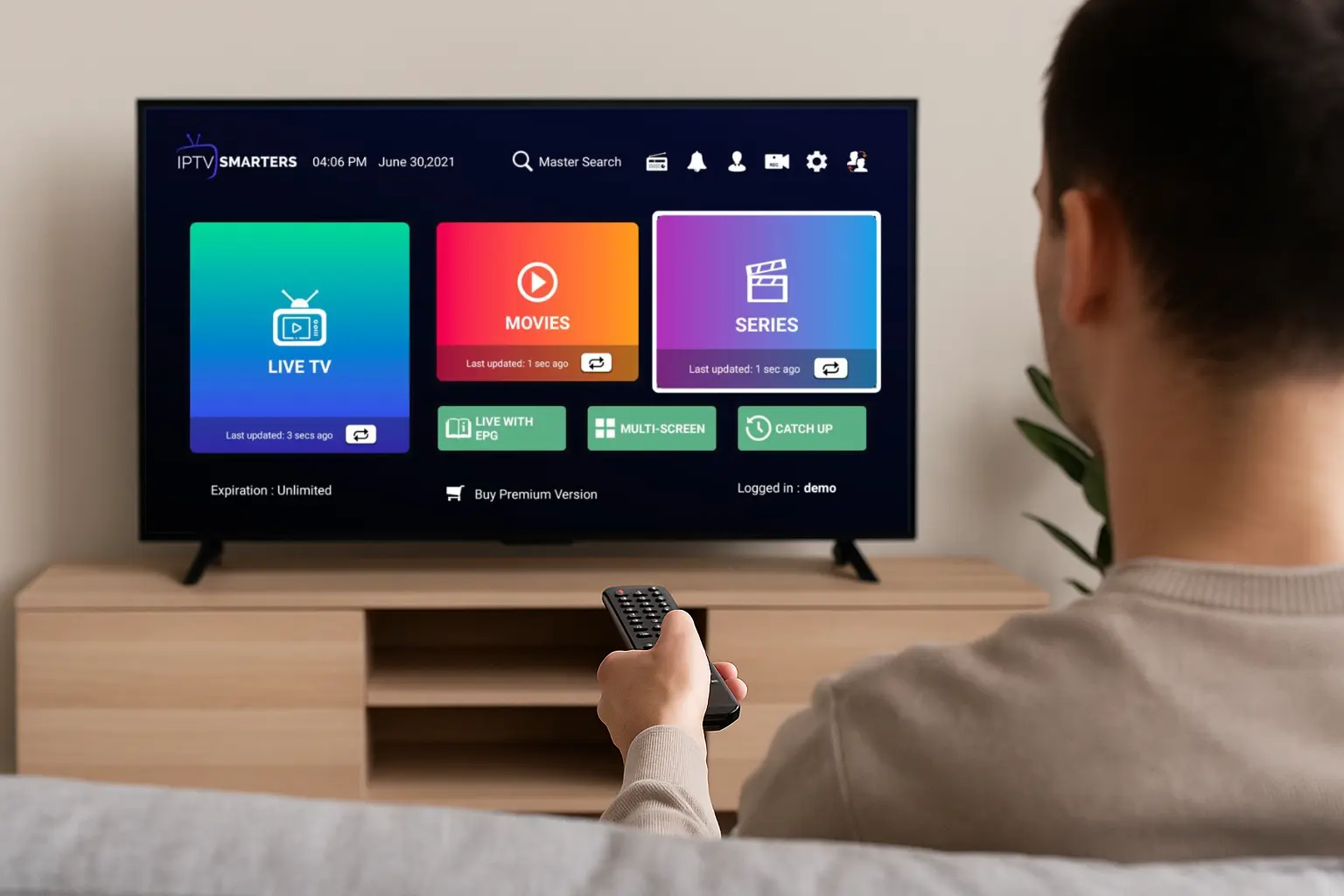
To download IPTV Smarters Pro on your Samsung TV, make sure the TV supports Developer Mode and third-party installs. If the IPTV Smarters Pro tile does not appear in the Samsung App Store, you can sideload the APK using a USB drive and a trusted file manager. Once installed, sign in with your IPTV login, tweak the video buffer, enable EPG, and enjoy smooth IPTV streaming with a provider like IPTV Prime.
IPTV Smarters Pro is optimized for Samsung televisions running Tizen OS, bringing polished navigation, strong performance, and intuitive channel management. Whether you own a 2016 model or a brand-new flagship, the steps below guide you through every phase of installing, configuring, and maintaining the app.
Why Choose IPTV Smarters Pro for Samsung TV?
- •Intuitive remote-first interface tailored to Samsung layouts.
- •Handles large channel lists, VOD catalogs, and catch-up TV without lag.
- •Built-in multi-screen, parental controls, and account syncing.
- •Fully compatible with IPTV Prime and other licensed IPTV providers.
Step 1
Enable Developer Mode on Samsung TV
Verify TV Compatibility
Most Samsung Smart TVs released from 2016 onward allow Developer Mode, but double-check the following:
- ▹The TV runs Tizen OS or another platform that supports third-party apps.
- ▹You have the original Samsung remote or a fully compatible replacement.
- ▹You can access the Apps and Settings menus without restrictions.
Developer Mode Walkthrough
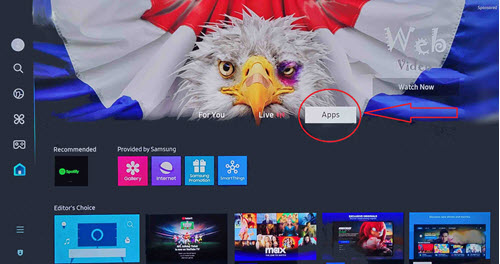
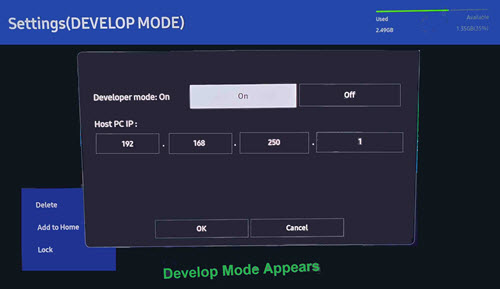
- 1.Press the Home button, highlight Apps, and open it.
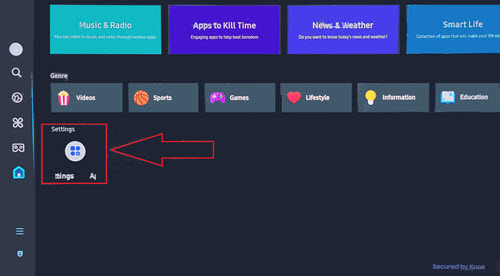
- 2.Scroll to the gear icon labelled Settings.
- 3.Enter the default PIN 12345 when prompted.
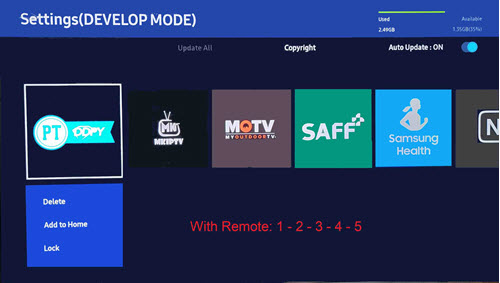
- 4.Toggle Developer Mode to ON and confirm.
Step 2
Prepare Apps, APK, and USB Tools
Check the Samsung App Store First
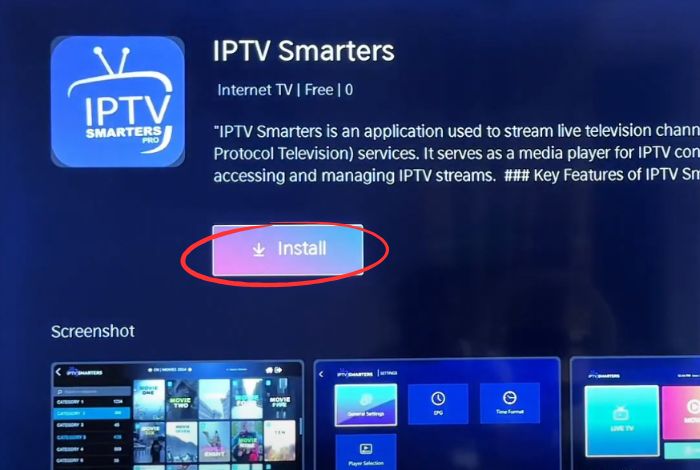
- ▹Search for “IPTV Smarters Pro.” If it appears, install directly—no sideloading required.
- ▹If not listed, continue with the manual APK workflow below.
If You Need to Sideload
- ▹Install a file manager from the Samsung App Store such as:
- ES File Explorer
- X-Plore
- Solid Explorer
- MiXPlorer
- ▹Download the IPTV Smarters Pro APK from the official IPTV Smarters website or another verified APK repository.
- ▹Copy the APK onto a USB drive (100 MB of free space is plenty). Format it to FAT32/exFAT for best compatibility.
Step 3
Sideload the IPTV Smarters Pro APK
- 1.Copy the APK from your computer to the USB drive and safely eject it.
- 2.Plug the USB drive into your Samsung TV. Wait for the on-screen notification confirming it was detected.
- 3.Launch your chosen file manager and browse to the USB storage.
- 4.Select the IPTV Smarters Pro APK, approve any security prompts, and choose Install.
- 5.Once the success message appears, the app icon will live inside your Apps list.
If You Hit a Roadblock
These Samsung-compatible IPTV players can act as backups while you troubleshoot:
- ▹Smart IPTV
- ▹GSE Smart IPTV
- ▹Perfect Player IPTV
- ▹TiviMate IPTV Player
Step 4
Set Up IPTV Smarters Pro for Smooth Streaming
Initial App Setup
- ▹Open IPTV Smarters Pro from your Apps row and follow the welcome prompts.
- ▹Accept the permissions dialog so the app can read storage and network data.
- ▹Check for updates inside the Settings panel to ensure you have the latest build.
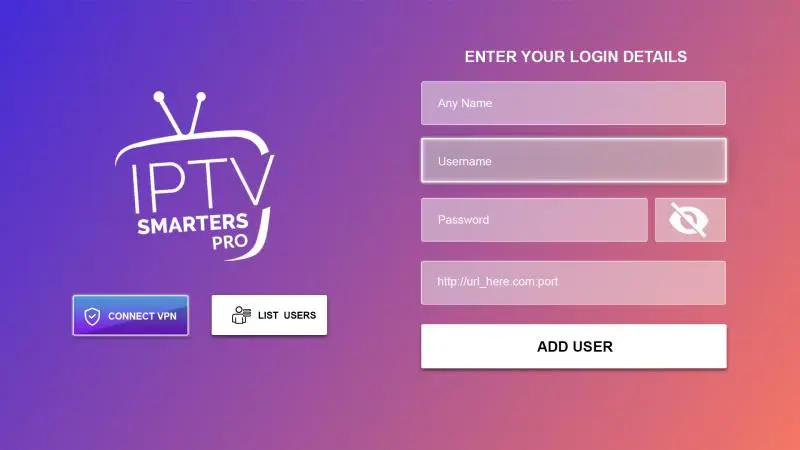
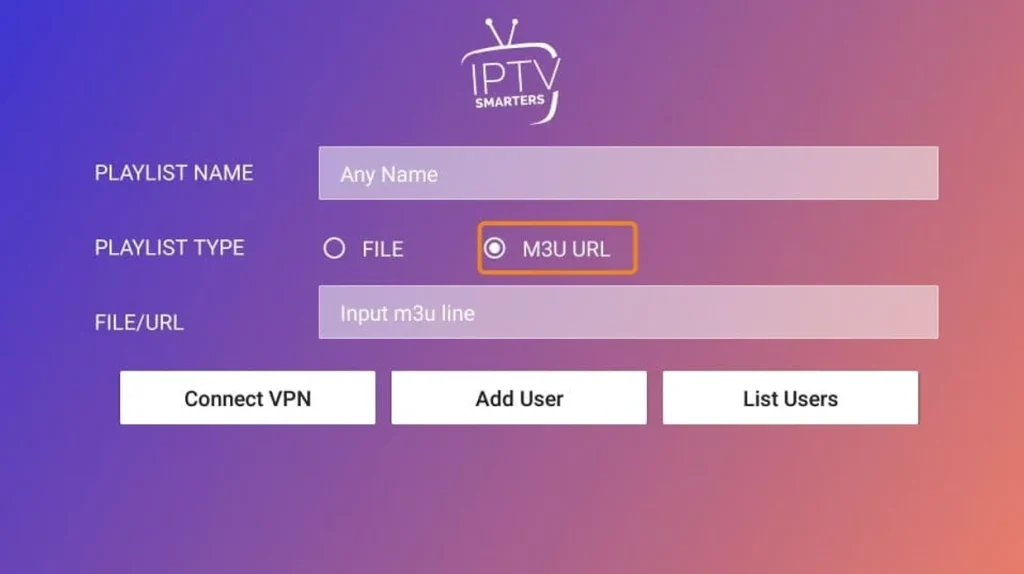
Enter Your IPTV Service Credentials
Gather the details supplied by IPTV Prime (or your provider):
- ▹Server/Portal URL
- ▹Username and Password
- ▹Optional M3U playlist URL if your provider uses playlist mode
Optimize Video and Interface Settings
- ▹Set streaming quality to match your bandwidth and TV capabilities.
- ▹Increase buffer size slightly if you experience sporadic stutter.
- ▹Enable EPG to populate the on-screen program guide automatically.
- ▹Customize favorite groups, themes, subtitles, and audio language.
Advanced IPTV Smarters Pro Features on Samsung TV
Multi-Device Account Sharing
- ▹Install IPTV Smarters Pro on each Samsung TV using this guide.
- ▹Log in with the same IPTV credentials on every TV to mirror your lineup.
- ▹Check your IPTV provider's simultaneous connection policy to avoid lockouts.
Create Favorite Channel Lists
- ▹Mark any channel as a favorite to surface it on a dedicated tab.
- ▹Group favorites by category (Sports, Movies, News) for faster navigation.
- ▹Rename lists and reorder items to match household viewing habits.
Enable Recording Functionality
- ▹Highlight a live channel and look for a Record button or options menu.
- ▹Schedule recordings ahead of time for big events or series.
- ▹Review captured content inside the Library or Recordings section.
Configure Parental Controls
- ▹Navigate to Settings > Parental Controls inside IPTV Smarters Pro.
- ▹Create a secure PIN code and keep it private.
- ▹Disable or hide adult categories and enforce viewing time limits if supported.
Optimize IPTV Streaming on Samsung TV
Internet Connection
- ▹Maintain at least 5–10 Mbps per stream for HD playback.
- ▹Use Ethernet whenever possible or place the TV within strong Wi-Fi range.
- ▹Limit heavy downloads or gaming traffic during live events.
- ▹Reboot your router periodically to clear stale sessions.
Device Maintenance
- ▹Clear IPTV Smarters Pro cache under Settings to remove temp files.
- ▹Install Samsung firmware updates and app updates as soon as they ship.
- ▹Restart the TV and the app weekly to flush background processes.
- ▹Keep at least a few gigabytes of free TV storage for smooth app installs.
Use a VPN (Optional)
- ▹Install a reputable VPN from the Samsung App Store or pair with a router-based VPN.
- ▹Connect before opening IPTV Smarters Pro to route traffic securely.
- ▹VPNs help bypass geo-blocks, protect privacy, and reduce ISP throttling.
Troubleshooting & FAQ
Is IPTV Smarters Pro Free on Samsung Smart TVs?
The IPTV Smarters Pro player is free to download and install, but it requires paid IPTV service credentials to unlock live TV and VOD. Many providers, including IPTV Prime, offer limited trials, yet long-term viewing always depends on an active subscription.
Can I Use One Account on Multiple TVs?
Yes. Install IPTV Smarters Pro on each Samsung TV and sign in with the same IPTV username/password. Just confirm how many concurrent streams your provider allows (often 1–5) so you do not exceed the limit.
Is IPTV Smarters Pro Legal?
The application itself is legitimate software. Legal risk only appears when streaming pirated or unlicensed channels. Stick to reputable providers with documented broadcast rights and avoid suspiciously cheap “all channel” offers.
Does IPTV Smarters Pro Void My Samsung TV's Warranty?
Using Developer Mode and sideloading trusted apps does not typically impact your warranty. Begin with compatible APKs from reputable sources, keep firmware updated, and avoid modifications that could harm system files.
Can I Customize the IPTV Smarters Pro Interface?
Absolutely. You can switch between light/dark themes, rearrange menus, define default channel groups, adjust subtitle/audio defaults, and fine-tune navigation layouts for better remote ergonomics.
Installation Problems
- ▹Confirm Developer Mode is still enabled (Samsung resets it after major updates).
- ▹Verify the APK hash/source or download again if corruption is suspected.
- ▹Try a different file manager if the APK will not launch.
- ▹Format the USB drive to FAT32 or exFAT and retry the transfer.
- ▹Power-cycle the TV before repeating the installation.
Streaming Quality Issues
- ▹Run a speed test to confirm you meet the 5–10 Mbps per stream guideline.
- ▹Lower the streaming quality or reduce the buffer value inside Settings.
- ▹Move closer to the router or connect via Ethernet for mission-critical events.
- ▹Clear the IPTV Smarters cache and relaunch the app.
- ▹Ask your IPTV provider if there are known server outages.
Channel Loading Problems
- ▹Re-enter the portal URL, username, and password to eliminate typos.
- ▹Make sure your IPTV subscription is still active and paid.
- ▹Toggle airplane mode on your router (disconnect/reconnect) to refresh DHCP.
- ▹Force close IPTV Smarters Pro, reopen it, and pull down to refresh the playlist.
- ▹Install the latest IPTV Smarters Pro update or revert to a prior stable build.
Conclusion
Enabling Developer Mode, preparing a USB sideload, and configuring IPTV Smarters Pro only takes a few minutes when you follow this playbook. With IPTV Prime credentials loaded, you gain instant access to thousands of live channels, movies, and on-demand replays tuned specifically for Samsung TVs. Keep the app updated, maintain your network, and lean on the troubleshooting checklist above to ensure reliable IPTV streaming for years to come.