How to Set Up IPTV on a MAG Box Complete Configuration Guide
Configure your MAG receiver, register its MAC address, and enter the IPTV portal URL to unlock reliable live TV, movies, and on-demand streaming in minutes.
MAG boxes are purpose-built IPTV receivers with native portal support, making them ideal for subscribers who want dependable channel playback without juggling multiple apps. Follow the steps below to pair your device with any IPTV provider that supports MAG activation.
Why choose MAG?
Dedicated IPTV firmware, fast channel zapping, reliable portals
What you’ll need
- • MAG Box (MAG 245/250/322/424/522 or similar) with remote
- • HDMI cable connected to an available TV port
- • Original power adapter and stable outlet or surge protector
- • Reliable internet (Ethernet recommended, Wi-Fi optional)
- • Portal URL + MAC address registered with your IPTV provider
Power on the MAG box and open Settings
- Connect HDMI and power, then boot the MAG box. The main portal screen will appear.
- Use the remote to highlight Settings or press the dedicated setup button.
- Confirm you see the full configuration menu for portals, network, and device options.
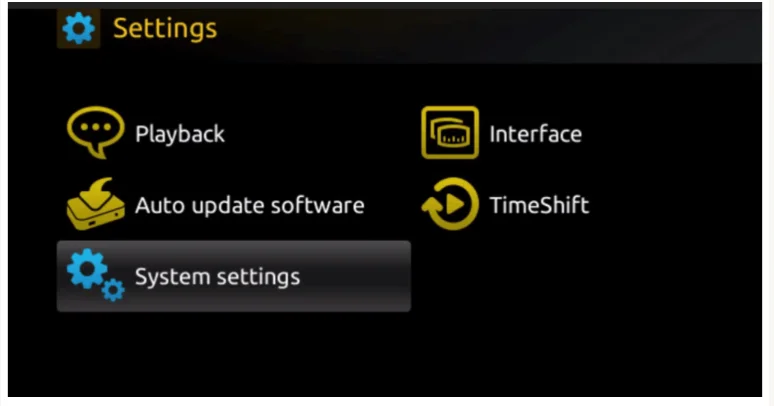
Navigate to System Settings → Servers
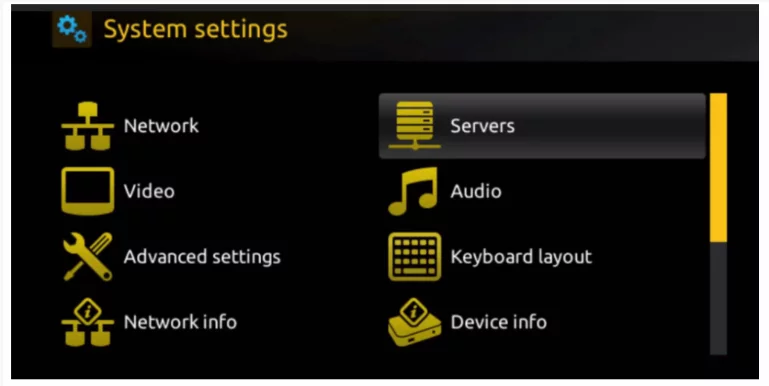
The Servers menu manages IPTV portals and connections to your provider’s infrastructure.
- Select System Settings from the configuration menu.
- Open Servers to reach portal, time servers, and other networking options.
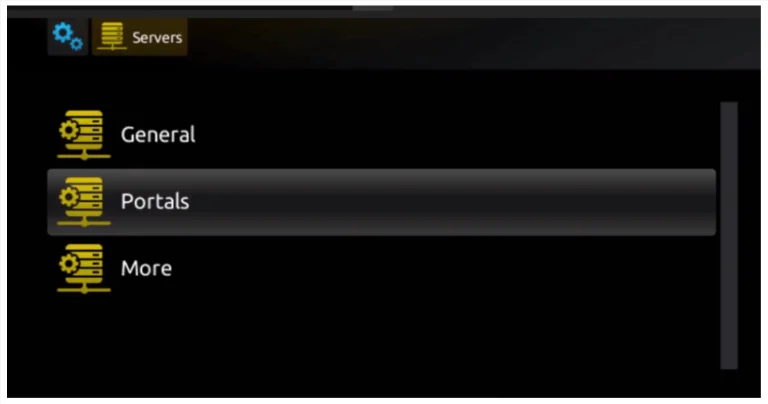
Select Portals and choose an available slot
Most users configure Portal 1 with their primary IPTV subscription. Use extra slots for backup providers.
- Within Servers, pick Portals.
- Highlight Portal 1 (or another empty slot) and press OK.
Enter Portal Name and Portal URL
Provide the label and server address exactly as your IPTV provider supplied.
- Type a custom Portal 1 Name (e.g., “My IPTV” or your provider’s brand).
- Enter the Portal 1 URL precisely, including http/https and port numbers.
- Press OK to store the values.
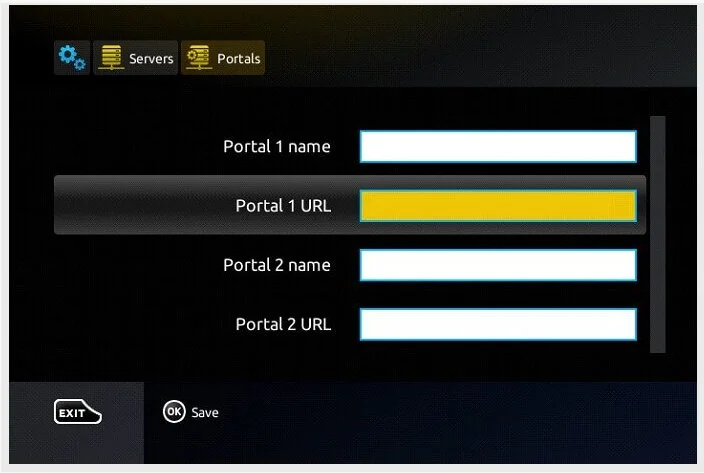
- Enter a descriptive Portal Name so you can identify the service quickly.
- Type the Portal URL exactly as provided, including protocol and port.
- Avoid trailing spaces; use the remote’s back button to remove any extra characters.
- If you own multiple IPTV subscriptions, configure Portal 2 or 3 with additional URLs.
Register your MAC address and activation URL
Most IPTV providers require the MAG box MAC address before they enable streaming. Look at the sticker underneath the receiver or open Settings → System Information to view it.
- Send the MAC address (format: 00:1A:XX:XX:XX:XX) to your IPTV provider.
- Wait for them to activate the device and provide a personalized portal URL if needed.
- Update the Portal 1 URL field with any new activation link the provider issues.
Save, exit, and reboot the MAG box
- Press OK to save the portal configuration.
- Hit EXIT to return to the main screen.
- Reboot via Settings → System → Restart (or power cycle the device) to apply changes.
After the reboot, the MAG box will contact your IPTV provider, authenticate the MAC address, and load your channel list.
Start streaming live TV, movies, and series
Explore the IPTV portal using your remote. You should see live channels, VOD categories, and EPG data if your provider supplies it.
- Live TV – browse by genre, country, or favorites.
- Movies / Series – stream on-demand content from your provider’s catalog.
- EPG – view schedules, record, or set reminders (model dependent).
Optimize performance
- •Prefer wired Ethernet for the most stable IPTV streams.
- •Maintain at least 5–10 Mbps per HD stream (15+ Mbps for 4K-enabled MAG boxes).
- •Place the receiver in a ventilated area to prevent overheating.
- •Restart the MAG box weekly to clear caches and maintain fast channel zapping.
- •Check for firmware updates every few months for bug fixes and better performance.
Advanced settings to explore
- Video settings: choose 720p, 1080i/p, or 4K (on supported hardware).
- Audio output: toggle Stereo, Dolby Digital, or passthrough modes.
- Parental controls: lock adult categories with a PIN.
- Favorites: curate channel groups for faster navigation.
- Portal switching: configure multiple providers and swap from the home menu.
Troubleshooting & FAQ
Why isn’t my IPTV portal loading?
Double-check the Portal URL, verify your MAC address is registered, confirm internet connectivity, and reboot the MAG box. Contact your IPTV provider if the server is down.
Can I store multiple IPTV services?
Yes. MAG boxes support several portal slots. Configure Portal 1 for the main provider and Portal 2/3 for backups, then switch from the main menu as needed.
What is the MAC address used for?
It uniquely identifies the MAG box. Your IPTV provider activates your subscription using this address, so make sure they have the correct value (printed on the device and in System Info).
Do MAG boxes support 4K streaming?
Recent models such as MAG 424/522 handle 4K as long as your IPTV provider supplies 4K channels and your bandwidth meets the required 15 Mbps+.
How often should I update firmware?
Check for updates via Settings > System > Software Update every few months to maintain security and compatibility.
Alternative IPTV hardware to consider
- •Dreamlink T1 / T1+ / T6 dedicated IPTV receivers
- •Formuler Z series with MyTVOnline experience
- •Amazon Firestick or Google TV with IPTV apps installed
- •Android TV boxes for users who prefer app stores and customization
- •Smart TVs (Samsung, LG) running native IPTV players
Conclusion
With a MAG box, IPTV setup stays simple: enter your portal information, register the MAC address, reboot, and watch. Keep your connection stable, update firmware regularly, and rely on trustworthy IPTV providers for the smoothest viewing experience.