IPTV Apps Tutorial
How to Use IPTV Downloader on Windows PC Complete Setup & Configuration Guide
Install a Windows IPTV player, plug in your IPTV provider’s M3U playlist or Xtream Codes, dial in playback settings, and stream live TV on any desktop or laptop in minutes.
Windows PCs deliver powerful hardware, big displays, and easy multitasking, making them perfect for IPTV streaming. Grab a trustworthy IPTV downloader (MyIPTV Player, IPTV Smarters, ProgDVB, VLC, Kodi), supply your provider’s M3U link, and tune performance options for silky HD and 4K playback.
This guide covers everything: choosing the app, installing it safely, adding playlists, configuring playback, enabling parental controls, and resolving the most common Windows IPTV hiccups.
Why Use IPTV on Windows PC?
- •Run IPTV alongside work apps, browsers, and productivity tools.
- •Enjoy higher processing power for smooth HD/4K playback.
- •Hook into bigger monitors or multi-display offices.
- •Access a broad ecosystem of IPTV apps, from simple players to full media centers.
Step 1
Choose & Install a Windows IPTV Downloader
Popular Options
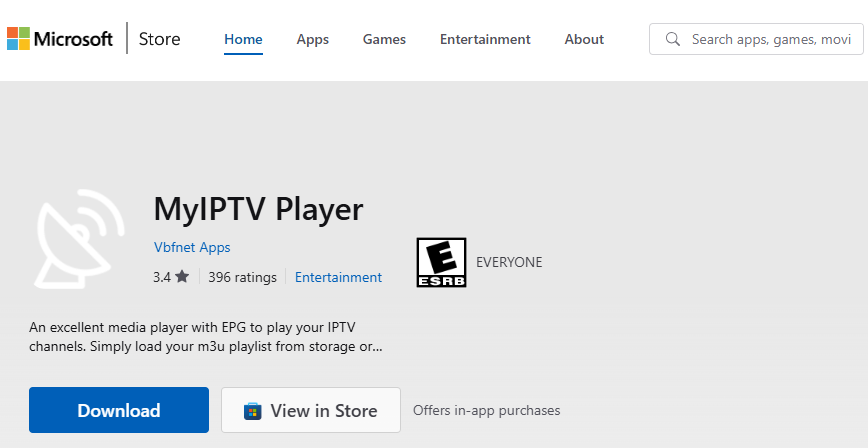
- ▹MyIPTV Player (Microsoft Store) — clean UI and remote-like navigation.
- ▹ProgDVB — advanced filters, timeshifting, and recording tools.
- ▹IPTV Recorder — built-in DVR-style scheduler.
- ▹VLC Media Player — lightweight option for manual playlist playback.
- ▹Kodi — full media center with IPTV add-ons.
- ▹IPTV Smarters Pro — polished premium interface.
- ▹Perfect Player IPTV — high customization with keyboard shortcuts.
Install Steps
- Visit the Microsoft Store or the developer’s official website.
- Download the installer (.exe/.msi) and double-click to launch.
- Accept the license, choose the install path, and complete the wizard.
- Click Finish. The app icon appears in the Start menu or desktop.
Step 2
Prepare Your IPTV Subscription Info
- ▹Request your M3U playlist link or Xtream Codes from your IPTV provider (e.g., https://iptvsuperbox.com/).
- ▹Test your internet connection (minimum 10 Mbps for HD; 25+ Mbps for 4K).
- ▹Close heavy downloads or VPN tunnels that might throttle throughput.
- ▹Keep the IPTV credentials handy so you can paste them without typos.
Step 3
Open the App & Add Your M3U Playlist
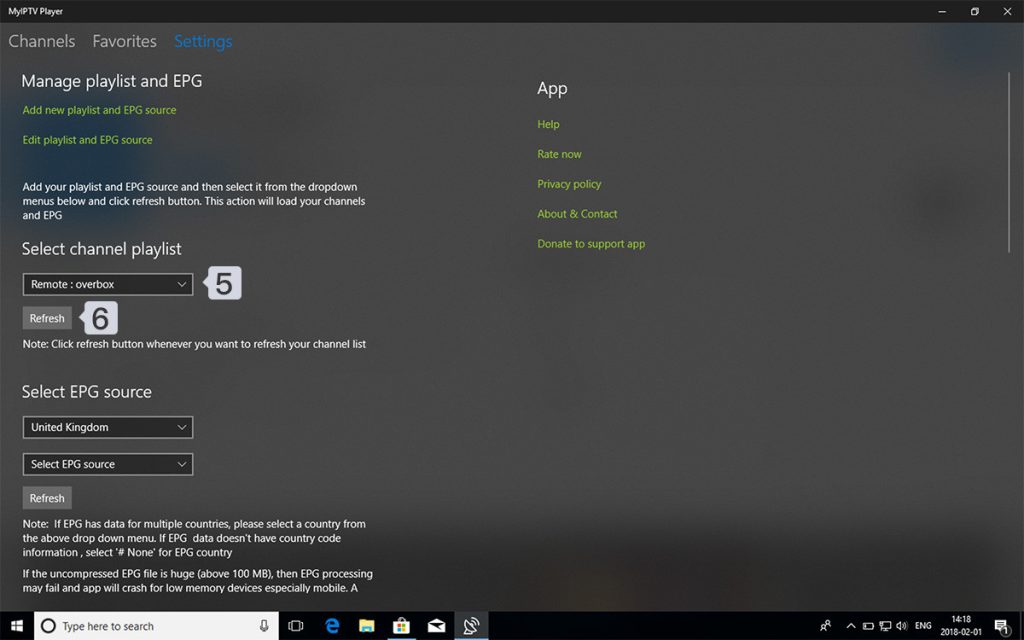
Launch the IPTV app, navigate to Settings, and add your playlist information.
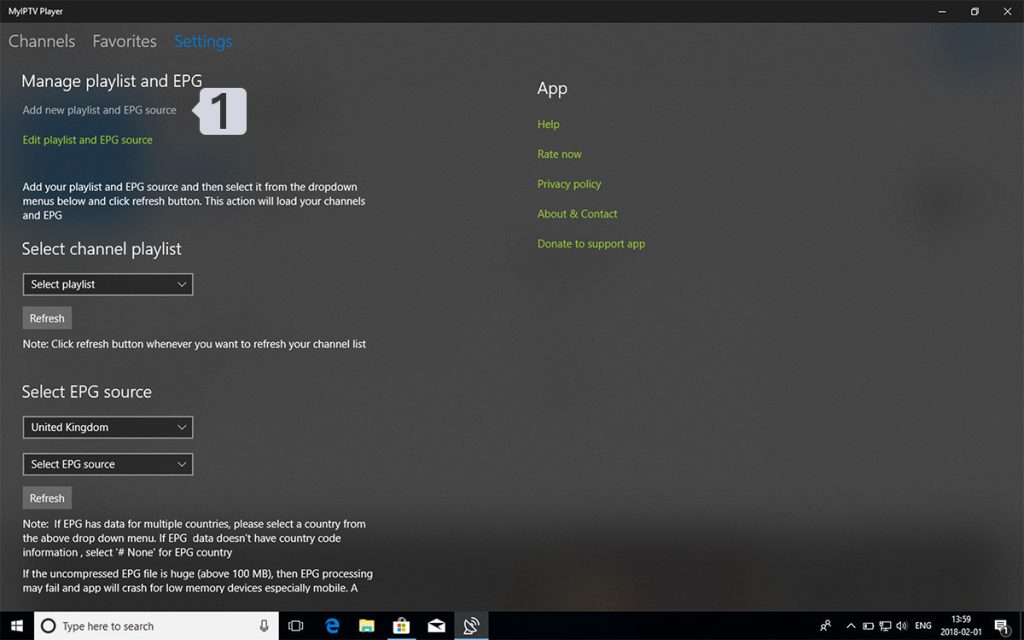
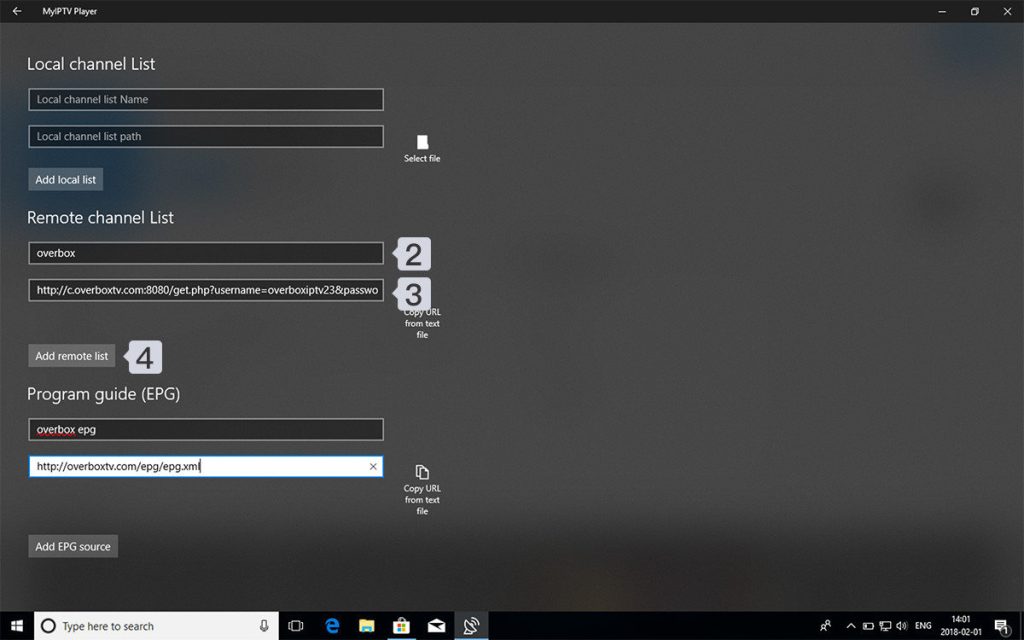
- ▹Launch the IPTV player and open Settings or Channel Sources.
- ▹Click Add New Playlist / Add Remote Channel List.
- ▹Name the playlist ("My IPTV", provider name, etc.) to identify it later.
- ▹Paste the M3U URL exactly as provided (case-sensitive, no trailing spaces).
- ▹Save the playlist and let the app fetch channels and EPG data.
Step 4
Configure Playback Settings
Back in Settings, select your playlist and adjust performance options:
- ▹Video Quality — choose SD, HD, Full HD, or 4K based on bandwidth.
- ▹Buffer Length — increase buffer for slower networks to minimize stutter.
- ▹Network Timeout — extend timeout if you have occasional latency spikes.
- ▹Auto-Update Playlists — enable so the channel list refreshes automatically.
- ▹Display / Aspect — match your monitor resolution and aspect ratio.
Step 5
Start Streaming Channels
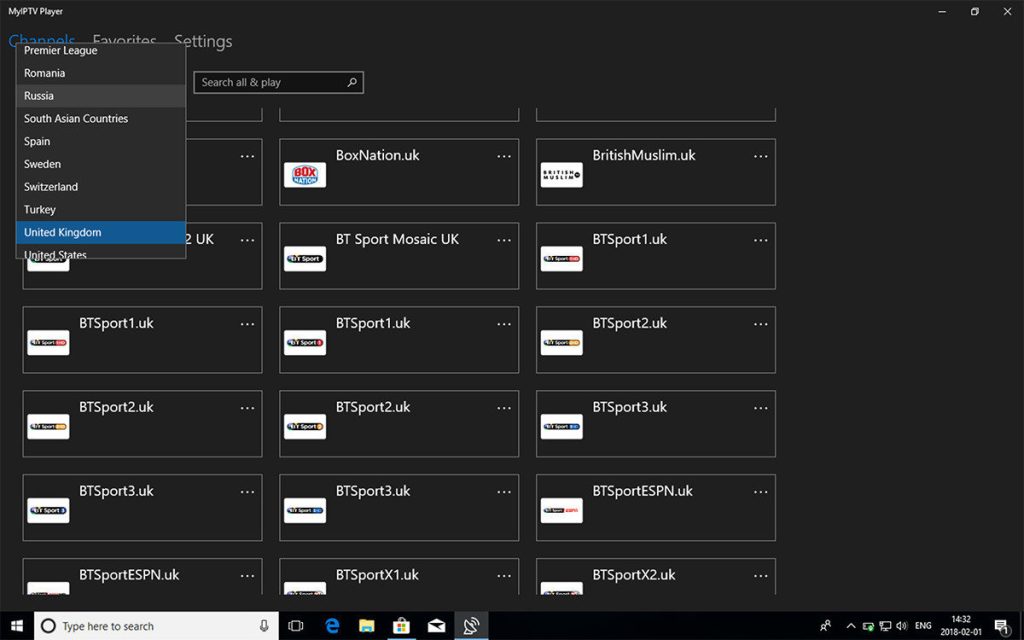
Open the Channels tab, choose a region/category, and start watching. Use your mouse/keyboard to control playback, change volume, switch channels, or adjust quality on the fly.
Optimize IPTV Streaming on Windows
Improve Video Quality
- ▹Upgrade to wired Ethernet or Wi-Fi 6 for more consistent throughput.
- ▹Limit concurrent devices streaming on the same network.
- ▹Use app-level quality controls to match your speed (SD for 3–5 Mbps, HD for 5–10 Mbps, Full HD for 10–15 Mbps, 4K for 25+ Mbps).
Enable Parental Controls
- ▹Look for Parental Controls or Content Lock inside the IPTV app.
- ▹Create a PIN to hide adult or premium categories.
- ▹Assign ratings or individual channel locks if the player supports it.
Language & Localization
- ▹Switch UI language to your preference from the Localization menu.
- ▹Define default audio/subtitle languages for multilingual channels.
- ▹Enable automatic subtitle downloads where supported.
Auto-Updates & Maintenance
- ▹Turn on auto-updates within the Microsoft Store or the app’s updater.
- ▹Restart the app or PC after major updates to finalize patches.
- ▹Back up your playlist credentials in a password manager.
Troubleshooting Common Windows IPTV Issues
Channels Not Loading
- ▹Verify the M3U URL/credentials are still valid and free of typos.
- ▹Confirm your IPTV plan is active with the provider.
- ▹Refresh the playlist or delete/re-add it from scratch.
- ▹Restart the IPTV app and your PC to clear cached sessions.
Buffering or Playback Lag
- ▹Run a speed test and ensure you meet the target bandwidth.
- ▹Drop to a lower quality tier temporarily.
- ▹Close background downloads, torrents, or cloud syncs.
- ▹Reboot your router or move closer to the access point.
Audio / Subtitle Issues
- ▹Change audio output within the IPTV app or Windows sound settings.
- ▹Cycle through audio tracks (Stereo, AC3, etc.) if multiple exist.
- ▹Verify the channel actually ships subtitles; try another stream.
- ▹Update or reinstall audio drivers if PC-wide issues persist.
Frequently Asked Questions
How do I use IPTV on Windows?
Install a Windows-compatible IPTV player, paste your provider’s M3U or Xtream Codes into the settings, refresh the playlist, and start streaming. Tune quality, buffering, and parental controls for the best experience.
Can I download IPTV apps on my PC?
Absolutely. Windows supports Microsoft Store apps (MyIPTV Player, IPTV Smarters) plus classic desktop programs like ProgDVB, VLC, and Kodi. Just download from trusted sources and follow the installer prompts.
What is the best IPTV app for Windows?
It depends on your workflow: MyIPTV Player for simplicity, ProgDVB for advanced customization, VLC for versatility, Kodi for full media-center features, IPTV Smarters for a premium feel, and Perfect Player for granular layouts.
Can I install IPTV Smarters on PC?
Yes. Open the Microsoft Store, search “IPTV Smarters Pro,” click Install, and then sign in with your IPTV credentials (M3U or Xtream). It syncs across supported devices when allowed by your provider.
Is IPTV on Windows legal?
The software is legal; legality hinges on the content source. Use licensed providers with transparent terms, proper broadcasting rights, and solid reputations (e.g., IPTV Prime) to stay compliant.
Conclusion
With a reliable Windows IPTV downloader installed, credentials from a trusted provider like IPTV Prime, and performance settings dialed in, your PC becomes a powerful IPTV hub for live TV, movies, and sports replays. Keep the app updated, leverage parental controls, and maintain a fast connection to enjoy flawless streaming for years to come.