IPTV Apps Tutorial
How to Install and Configure IPTV on IPTV Stream Player Complete Setup Guide
Install IPTV Stream Player from your device's official store, connect it to a reliable IPTV provider using M3U URLs or Xtream Codes, and configure streaming settings for lag-free live TV within minutes.
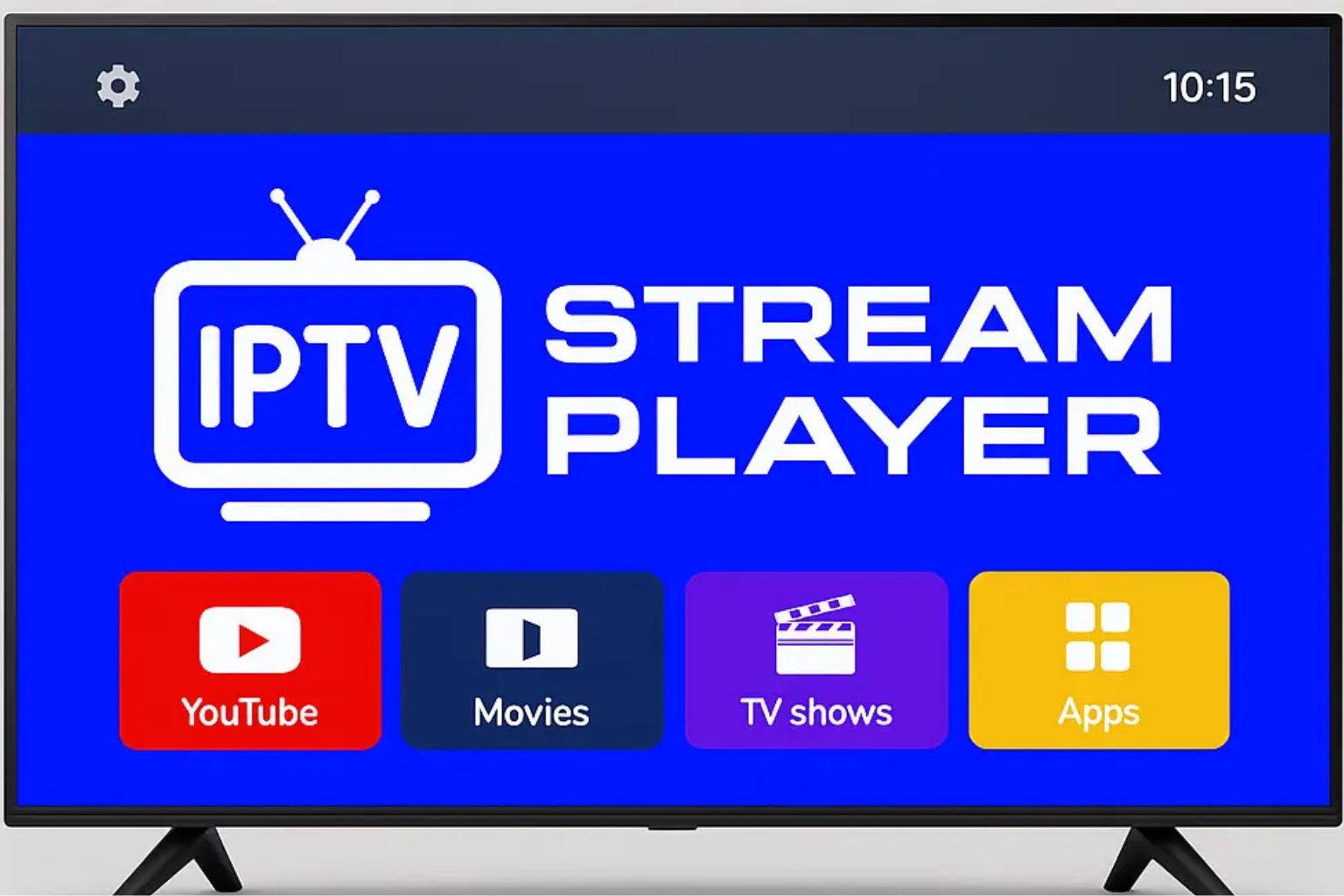
IPTV Stream Player supports M3U playlists and Xtream Codes authentication across smartphones, tablets, smart TVs, and streaming dongles. With a stable 10 Mbps+ internet connection and an active IPTV subscription, you can stream thousands of live channels, movies, and on-demand titles. This guide walks you through device readiness, installation, credential entry, testing, and ongoing optimization.
The app receives regular updates, ensuring new features and smoother playback. Follow the four steps below to go from zero to streamed content in less than half an hour.
Why Choose IPTV Stream Player?
- •Supports both M3U playlists and Xtream Codes, covering nearly every provider.
- •Works on mobile, TV, and desktop hardware with a unified interface.
- •Offers intuitive channel organization, EPG support, and rapid navigation.
- •Frequent updates keep the app secure, reliable, and feature-rich.
Step 1
Check Device Requirements and Setup Needs
Device Compatibility
- ▹Android phones and tablets running Android 5.0 or newer
- ▹iPhone and iPad devices on iOS 11.0 or later
- ▹Samsung, LG, and other Smart TVs with compatible app stores
- ▹Streaming devices such as Firestick, Roku, and Android TV boxes
- ▹Windows and macOS desktops via supported store builds or sideloading
Open your device's store to confirm IPTV Stream Player availability before proceeding.
Internet Connection Requirements
Minimum
10 Mbps
Standard definition channels and light usage
Recommended
15-25 Mbps
Consistent HD streaming
Premium
25+ Mbps
UHD / 4K events and multi-device households
Run a quick speed test (Fast.com or Speedtest.net) to verify you meet the target tier.
Gather IPTV Provider Credentials
- ▹M3U playlist URL if your provider distributes channels via downloadable lists.
- ▹Xtream Codes details (server URL, username, password) for portal authentication.
- ▹Portal URLs for providers using custom dashboards.
Step 2
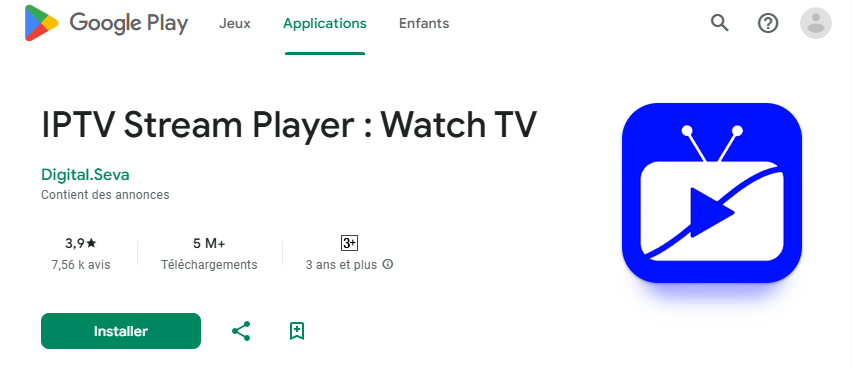
Download IPTV Stream Player from Your App Store
Open the Correct Store
- ▹Google Play Store for Android users.
- ▹Apple App Store for iPhone/iPad.
- ▹Samsung App Store, LG Content Store, or equivalent on smart TVs.
- ▹Amazon Appstore for Firestick / Fire TV.
- ▹Roku Channel Store for Roku hardware.
Search and Install
- Type “IPTV Stream Player” in the search field.
- Confirm the developer/publisher is verified and reviews look trustworthy.
- Tap Install or Get and wait for the download to finish.
- Press Open to launch immediately or locate the icon on the home screen later.
Step 3
Configure IPTV Stream Player with Your Subscription
Launch and Access Settings
Open the app and look for the Settings, Configuration, or Preferences icon, typically represented by a gear symbol.
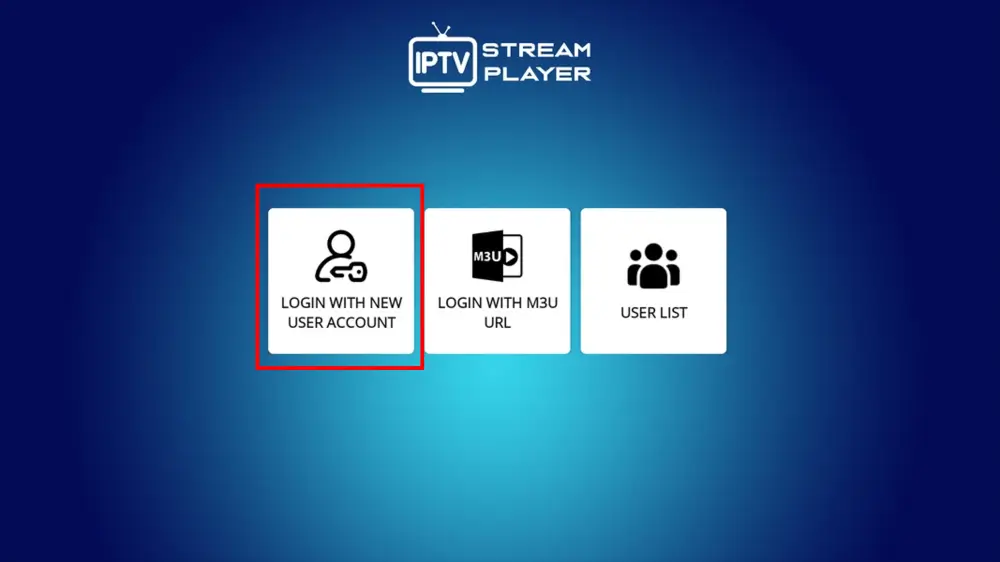
Option 1: Add an M3U Playlist
- Select Add Playlist or M3U URL.
- Paste the playlist link exactly as provided by your IPTV provider.
- Name the playlist (e.g., “My IPTV Prime”) for easy identification.
- Save and wait for the channel list to populate.
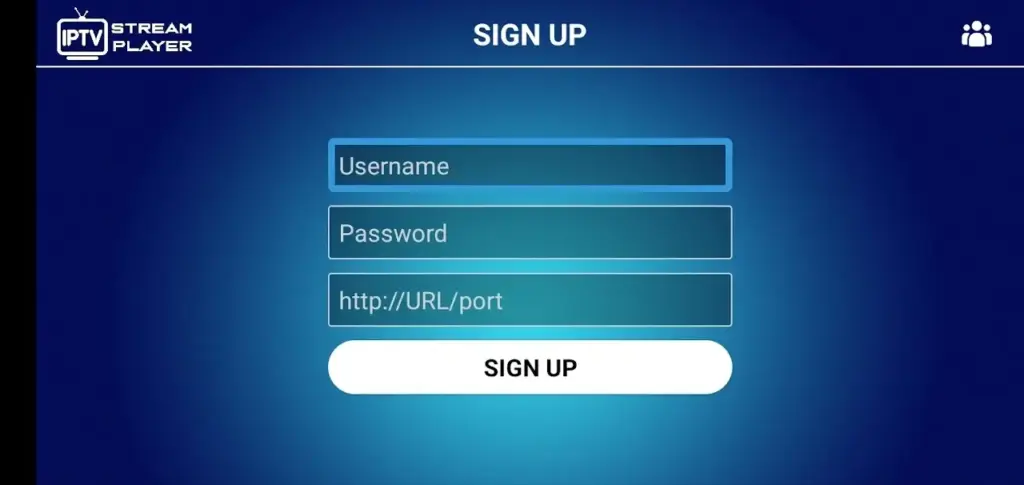
Option 2: Add Xtream Codes
- Choose Xtream Codes or Server inside Settings.
- Enter the portal/server URL, username, and password supplied by your provider.
- Double-check for typos or trailing spaces.
- Save and allow the app to sync categories and EPG data.
Load Your Channels
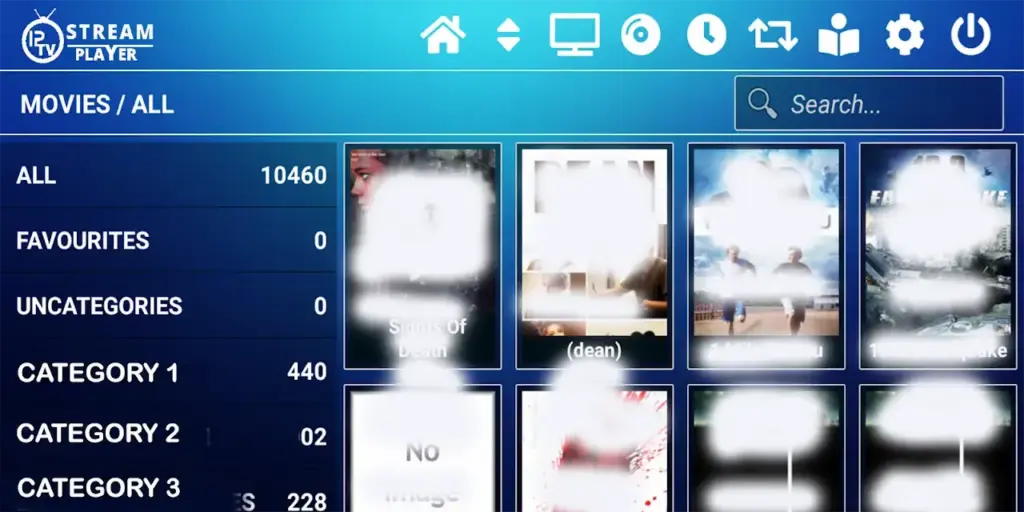
Tap Save/Apply and let IPTV Stream Player connect. A progress indicator shows the import status. Once done, browse the categories to confirm everything loaded correctly.
Step 4
Test and Optimize Your Streaming Setup
Verify Internet Speed
- ▹SD channels: 10 Mbps minimum.
- ▹HD channels: 15–20 Mbps.
- ▹UHD / 4K: 25+ Mbps.
- ▹If speeds dip, move closer to Wi-Fi, upgrade your plan, or switch to Ethernet.
Test Channel Playback
- Open a live channel and observe playback for a few minutes.
- Switch through multiple categories (Sports, News, Movies) to ensure all load.
- Note any buffering patterns to adjust video quality or buffer sizes.
Troubleshoot Early
- ▹Re-check credentials if channels fail to populate.
- ▹Refresh playlists or restart the app after edits.
- ▹Contact your IPTV provider if streams return authentication errors.
Optimize Your IPTV Stream Player Experience
Organize Your Channels
- ▹Create favorite lists for instant access.
- ▹Group channels by genre: Sports, News, Movies, Kids, etc.
- ▹Sort alphabetically or by last viewed.
Adjust Streaming Settings
- ▹Set video quality to Auto or Manual depending on bandwidth.
- ▹Increase buffer duration for unstable networks.
- ▹Enable EPG for program schedules.
- ▹Customize subtitles, audio languages, and interface themes.
Enable Regular Updates
- ▹Turn on auto-updates within your app store when available.
- ▹Manually check for new versions bi-weekly.
- ▹Read release notes to learn about new features or bug fixes.
Best Practices for IPTV Streaming
Maintain Stable Internet
- ▹Use Ethernet when available or position Wi-Fi routers close to the streaming device.
- ▹Reduce heavy downloads or gaming traffic during live events to prevent buffering.
- ▹Power-cycle your modem/router weekly to clear stale sessions and improve latency.
Protect Your IPTV Account
- ▹Create strong, unique passwords for your IPTV provider dashboard.
- ▹Avoid sharing credentials publicly; most providers limit simultaneous streams.
- ▹Monitor account activity and update passwords if you suspect unauthorized access.
Use Legal IPTV Services
- ▹Choose reputable providers that advertise proper licensing and broadcasting rights.
- ▹Steer clear of suspiciously cheap “all channel” offers that may host pirated content.
- ▹Review customer testimonials and independent reviews before committing to a long-term plan.
Device Maintenance
- ▹Clear IPTV Stream Player cache/temporary files in system settings to free storage.
- ▹Install OS and firmware updates to benefit from performance and security fixes.
- ▹Restart devices periodically to flush background apps and release memory.
Frequently Asked Questions
How Do I Enable IPTV on IPTV Stream Player?
Confirm your device is compatible, secure a subscription from a reliable provider, install IPTV Stream Player via the official store, and input the provided M3U URL or Xtream Codes. Refresh the playlist to load channels, then fine-tune quality, buffering, and interface preferences for best performance.
How Do I Add Channels to IPTV Stream Player?
Open Settings, choose the Add Playlist or Xtream Codes option, paste your M3U URL or enter server credentials, and save. Refresh or reload the playlist to populate the channel grid, then organize favorites or custom categories as needed.
What if My Channels Don't Load?
Run a speed test, double-check login credentials, confirm your subscription is active, refresh the playlist, update the app, and clear cache/data if necessary. Contact your IPTV provider if their servers are down or you need regenerated credentials.
Can I Use IPTV Stream Player on Multiple Devices?
Yes, the app supports multi-device sign-ins. Install IPTV Stream Player wherever it is available and log in with the same IPTV credentials. Ensure your provider allows enough simultaneous streams to avoid account lockouts.
Is IPTV Stream Player Legal to Use?
The application itself is legitimate software. Stay compliant by pairing it with licensed IPTV providers that distribute authorized channels and avoid pirated streams.
Conclusion
Installing IPTV Stream Player, linking it to your IPTV subscription, and fine-tuning network settings takes only a few minutes when you follow this guide. With consistent updates, proper ISP speeds, and reputable providers such as IPTV Prime, you can enjoy thousands of live TV channels, movies, and on-demand titles on any compatible device. Keep the app updated, monitor bandwidth, and leverage the customization features to make IPTV Stream Player your go-to streaming companion for years to come.